Audit Scheduling & Progress
The Scheduling page is where you plan your audit coverage. A schedule is a target observation count for a single facility, unit, shift, and time period — for example, “100 hand-hygiene observations on 1 South, dayshift, May 2026.” Audit Progress is the live coverage heatmap that pairs with it: for every active schedule it shows how many observations have been recorded, how that compares to the target, whether the team is ahead of or behind pace, and who is responsible for the unfilled assignments.
Use them together to spot units at risk of missing their Leapfrog or accreditation target while there is still time to act — and let each auditor open their own “My assignments” view to see exactly what is left on their plate.
Request for Information Compare EditionsKey Benefits
- Schedule by facility, unit, shift
- Weekly or monthly periods
- WHO-moment scoping
- One-click full-year build
- Sized to Leapfrog targets
- Live coverage heatmap
- Ahead / behind pace indicator
- ‘My assignments’ personal view
Schedule List
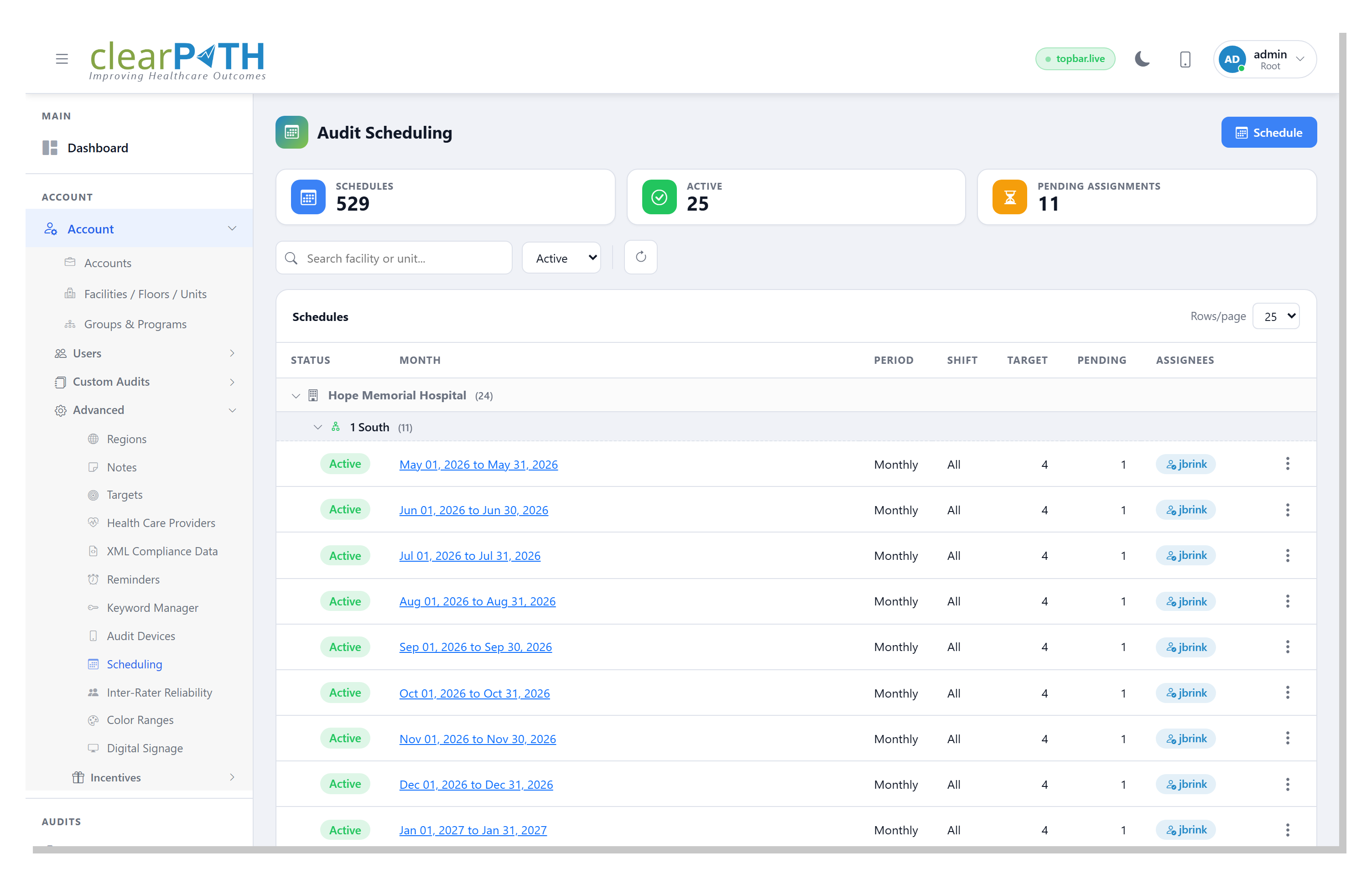
The Schedule List groups every schedule by facility, then by unit, so you can fold an entire site away when you only need to look at one area. Stat cards across the top roll up totals, active counts, and pending unfilled assignments. Each row shows status, period, shift, target, pending assignments, and the auditor responsible for the work.
- Stat chips: Schedules, Active, Pending Assignments
- Search facility or unit
- Active / Inactive / All filter
- Status pill on every row
- Period, shift, target, and pending counts
- Assignees pill or ‘Unassigned’
- Edit or delete from the row menu
Schedule Editor
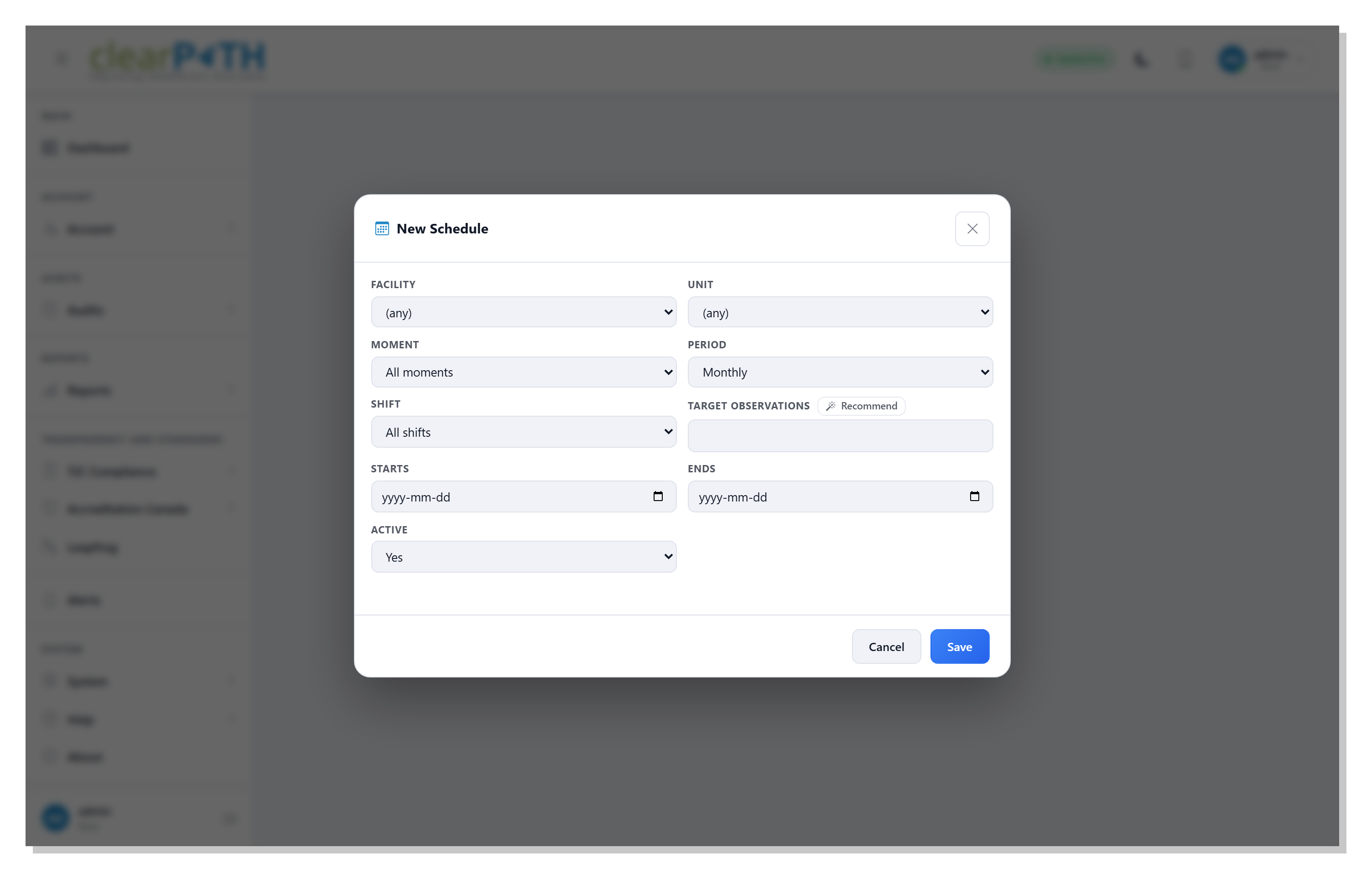
The schedule editor opens as a modal dialog. Fill in the scope and target, then save. Click Recommend to fill the target from the unit’s Leapfrog target if one is configured. Toggle Active off to keep a schedule for history without counting it toward coverage on the Audit Progress heatmap.
- Facility & unit scope
- Single moment or all moments
- Weekly or monthly period
- Day, evening, night, or all shifts
- Target observations
- Recommend from Leapfrog target
- Start and end dates
- Active toggle
Build a Full Schedule
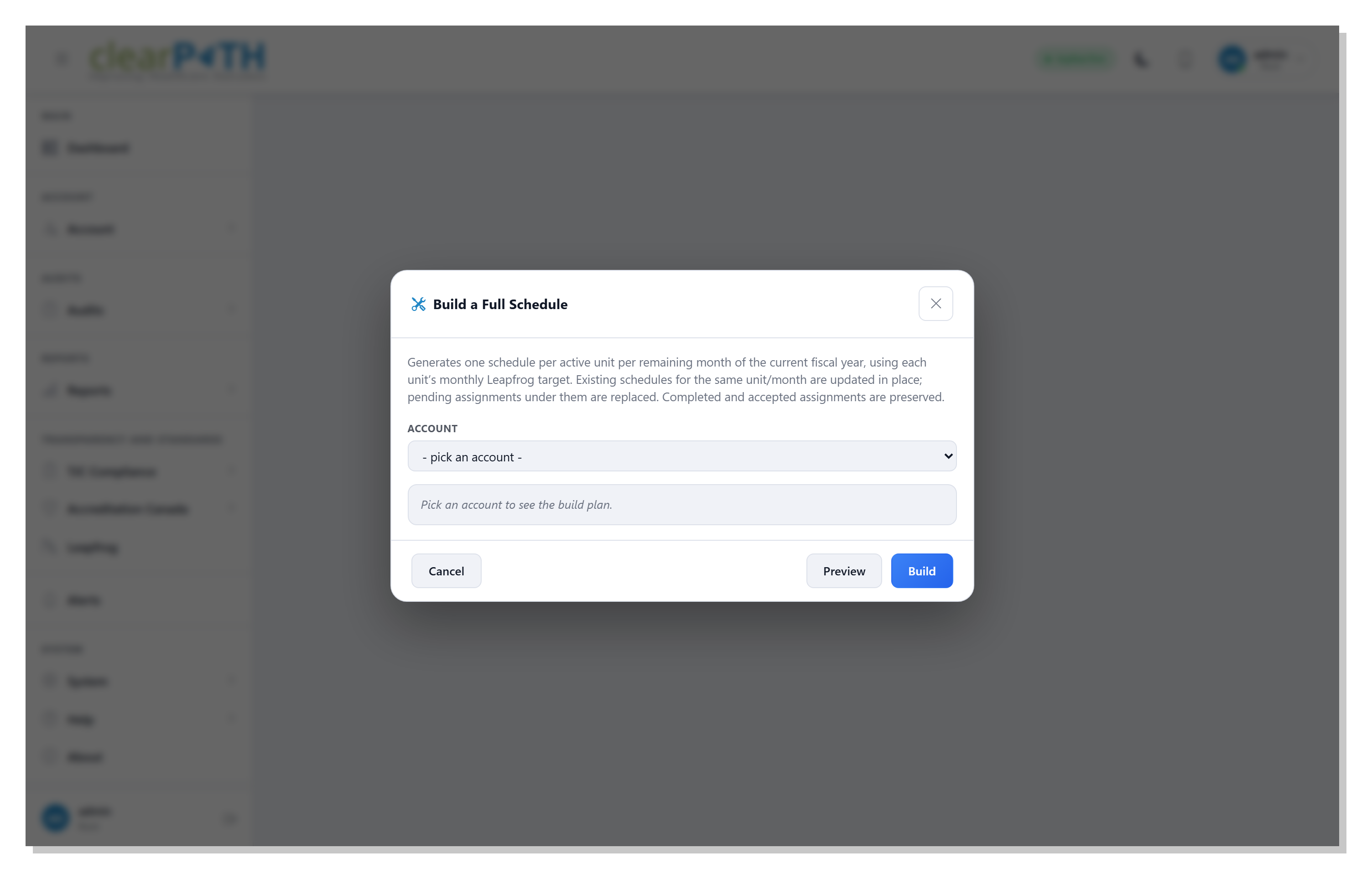
The Build a Full Schedule workspace generates a complete year of monthly schedules in one step. For every active unit in the chosen account, clearPath creates one schedule per remaining month of the current fiscal year, sized to that unit’s monthly Leapfrog target. Preview the build first to see exactly which units and months would be created, then commit.
- One schedule per active unit per month
- Sized to each unit’s Leapfrog target
- Preview before committing
- Existing schedules updated in place
- Pending assignments are replaced
- Completed and accepted assignments preserved
Audit Progress — Coverage Heatmap
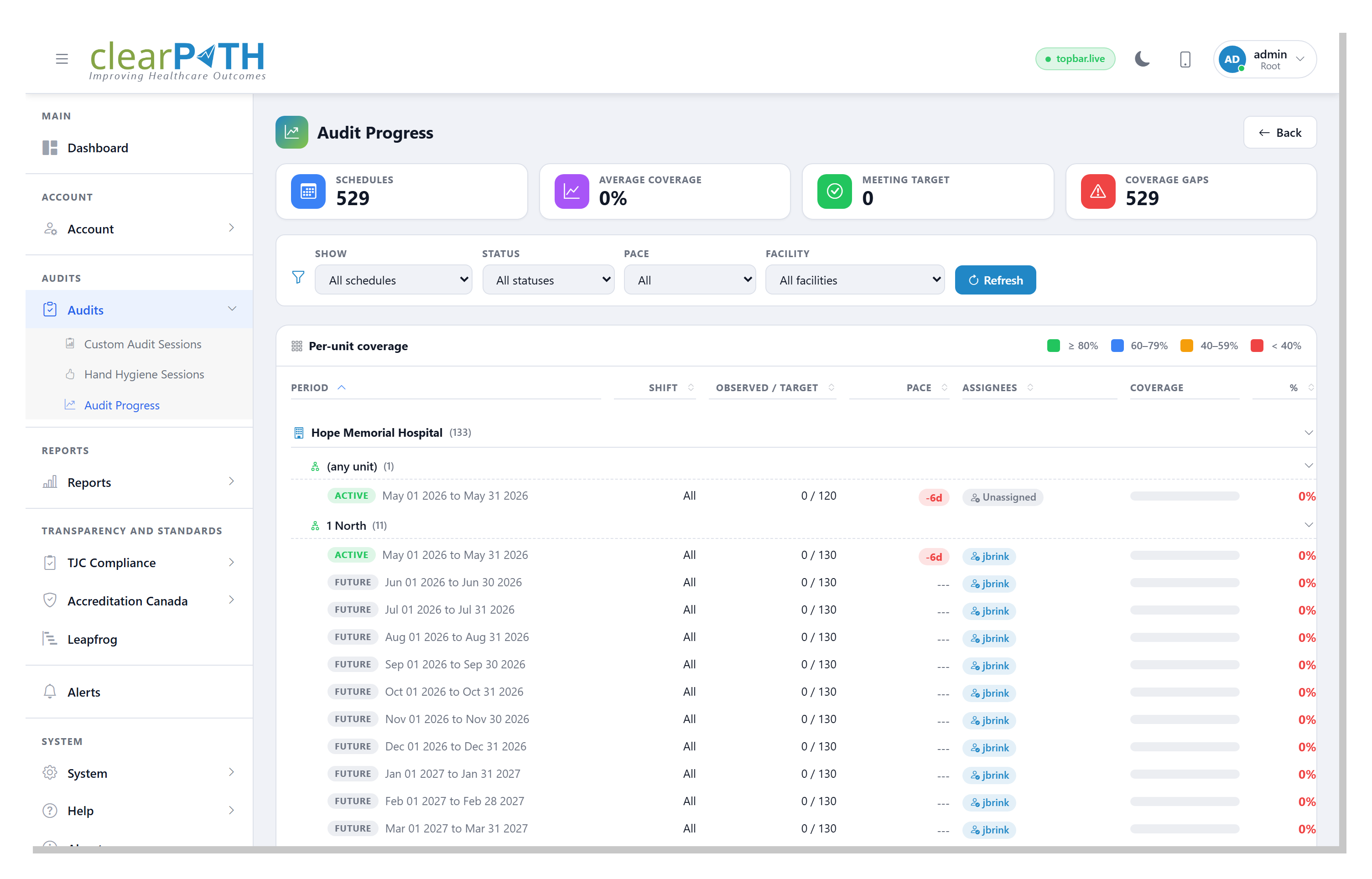
Once your schedules are in place, the Audit Progress page is where the front line lives. Every active schedule appears as a row, grouped by facility and then by unit. A coloured progress bar shows the percentage of the target observations recorded inside the schedule’s date window, using the standard clearPath coverage bands — green at 80% or higher, blue from 60 to 79, orange from 40 to 59, red below 40. Stat cards roll up the filtered list so the team knows where to lean in.
- Stat chips: Schedules, Avg Coverage, Meeting Target, Coverage Gaps
- Status pill: Active, Future, Closed
- Pace days:
+ahead or-behind - Filter by status, pace, facility
- ‘My assignments’ personal view
- Sortable columns
- Collapse a facility or unit to a single line
- Filter selections remembered between visits
A Year of Coverage in One Click — and a Heatmap That Tells You Where to Lean In.
Audit Scheduling and Progress are included on Enterprise and Ultimate editions. Build the year, hand observers their assignments, and trade end-of-quarter surprises for an at-a-glance view that says — this unit, this shift, today — where to put the next observation.
Request for Information Compare Editions