Word Template Reports
Some reports need to look exactly like your document — the board brief on your letterhead, the quarterly letter in your fonts, the unit one-pager with your logo in the corner. A Word Template report renders live compliance data and charts straight into a Word (.docx) template that you control. The template owns the layout, branding, and boilerplate; clearPath simply fills the spots you tag when the report runs.
Build the document once in Word, drop in a few plain-text tags where you want the numbers and charts to land, and upload it. From then on the report refreshes overnight, runs on demand, and can be emailed or distributed like any other report — always current, always on-brand. You can produce it as Word, or as a PDF generated from the same document.
Request for Information Compare EditionsKey Benefits
- Your layout, fonts, and branding
- Design the template in Word
- Live data filled at your tags
- Ten live charts you can drop in
- Built-in tables: targets & schedule
- Pareto, funnel & variability analytics
- Honours your 2-, 4-, or 5-moment setup
- Output as Word or PDF
- A different template per report
- Per-account template library
- Ships with a ready-to-use default
- Scope by facility and unit
- Any reporting period
- Written leadership narratives
- Schedule and distribute like any report
You Own the Layout
The template — not clearPath — decides how the report looks. Headings, fonts, colours, your logo, the legal boilerplate, the order of the sections: all of it lives in a Word document you build and edit in Word. clearPath never overwrites your design. It only replaces the tags you place, and leaves everything else exactly as you typed it.
- Full control of fonts, colours, and spacing
- Your logo and letterhead, header and footer
- Static boilerplate stays untouched
- Edit it any time in Microsoft Word
- Output the finished file as Word or PDF
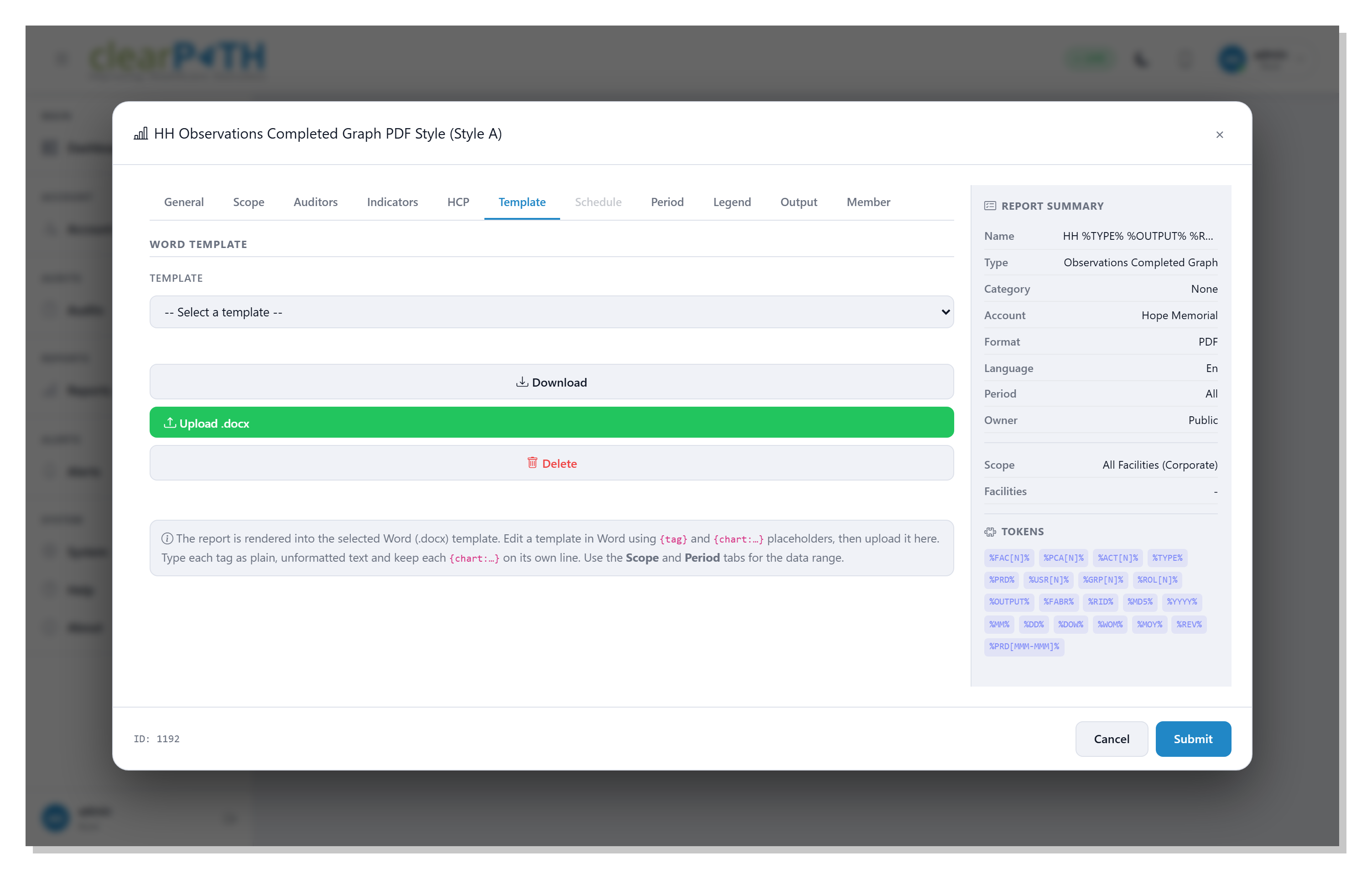
One Template Library, Many Reports
Each Word Template report points at its own template, so a single account can run as many as it needs — a board brief, a unit one-pager, a quarterly letter — all from one account template library. clearPath ships a ready-to-use default template as a starting point, so you can run a polished report on day one and refine it from there.
- A different template for each report
- Shared, per-account template library
- Upload, download, and delete your own templates
- A shipped default to start from
Choose It on the Template Tab
In the report editor, set the Report Type to Word Template and a Template tab appears. From there you pick the template the report should use, download it to edit in Word, upload a new .docx to your library, or remove one of your own. Use the familiar Scope and Period tabs to set the facility, unit, and date range the data covers — exactly as with any other report.
- Select, download, upload, or delete a template
- Scope by facility and unit
- Any reporting period, including dynamic ranges
- No new tools to learn
Tags Do the Filling
Wherever you want a live value to appear, type a plain-text tag. When the report runs, each tag is replaced with the real number for the report's account, scope, and period — the rest of your document is left untouched. Mix as many or as few tags as you like with your own text and design.
{accountname},{facilityname},{unitname}{reportperiod},{fromdate},{todate}{overallcompliance},{target},{gap},{status}{auditcount},{observationcount},{activeobservers}{hawthorne:compliance}— Hawthorne-adjusted compliance{stddev:overall}— month-to-month variability- Lowest unit, weakest moment, and lowest staff role
- Written narrative summaries for leadership
Moment tags automatically follow your account's 2-, 4-, or 5-moment setup — only your active moments appear, using your own moment names and abbreviations.
Drop In Live Charts
Ten chart tags insert live, rendered charts right inside the document. Put each one on its own line and the whole paragraph becomes the chart when the report runs. The charts are generated from the same data as the rest of the report, so the words and the pictures always agree.
{chart:trend}— monthly compliance versus target{chart:byunit}— compliance by clinical unit{chart:byrole}— compliance by staff role{chart:bymoment}— compliance by WHO moments{chart:facility_pct}— compliance by facility, with target line(s){chart:facility_count}/{chart:facility_total}— observations by facility{chart:pareto}— where non-compliance concentrates{chart:funnel}— compliance vs. volume, with control limits{chart:stddev}— consistency (standard deviation) over time
Built-in Tables
Some answers belong in a table, not a sentence. Table tags drop in a fully formatted, ready-to-read table — each on its own line — built from the same live data as the rest of the report.
{table:targets}— the compliance target in effect for each active moment, with the fallback target noted{table:schedule_ahead}— the top 10 units at or ahead of their audit schedule{table:schedule_behind}— the 10 units furthest behind their audit schedule
Board-Ready Analytics
Go beyond the headline number with the same analytics your teams use on the dashboard — now embedded right in your branded document.
- Hawthorne-adjusted compliance — a conservative figure that discounts the observer effect
- Pareto — focus effort on the moments that drive most misses
- Funnel plot — compare units fairly against observation volume
- Standard deviation — month-to-month consistency, and the audit-schedule progress tables above
Always Current, On Your Schedule
A Word Template report is a first-class report. It appears on your Reports list, refreshes on the normal overnight schedule and the moment you save it, can be run on demand, and can be added to a distribution list for automatic email or file delivery. The recipient always opens the latest numbers, laid out exactly the way your organisation expects to see them.
- Listed and managed with all your reports
- Automatic overnight refresh
- Run on demand, email and file distribution
- Word or PDF, always up to date
A Quick Word on Typing Tags
The safest way to add a tag is to type it in one go as plain, unformatted text. If you colour or style only part of a tag, Word can split it internally and it will not be replaced — so type the whole tag at once, or paste it as plain text. You never have to use every tag: anything you leave out simply does not appear, and any text that is not a recognised tag is left exactly as written.
- Type each tag as plain text, all in one go
- Each
{chart:…}tag on its own line - Unused tags simply do not appear
- Non-tag text is never touched
Your Document. Your Data
Word Template reports are available on the clearPath Ultimate edition.
Request for Information Compare Editions